![dealcloser-logo-onecolor-navy-2.png]](https://help.dealcloser.com/hs-fs/hubfs/dealcloser-logo-onecolor-navy-2.png?height=31&name=dealcloser-logo-onecolor-navy-2.png)
See "How to create a new project?" for more information on how to create projects.
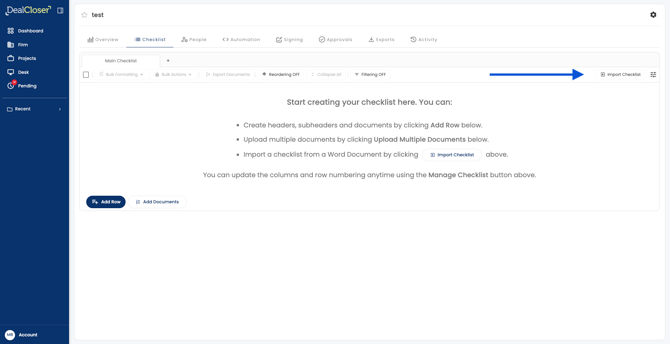
- After creating a new project, click "Import Checklist" on the right side of the screen of the checklist page.
- Click "Choose file" and select your preferred checklist in any of the available formats.
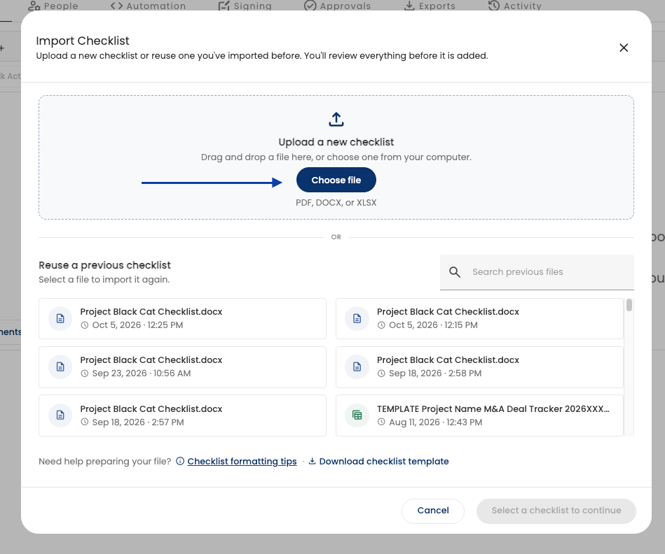
- Click "Import selected checklist" to start the import process.
-
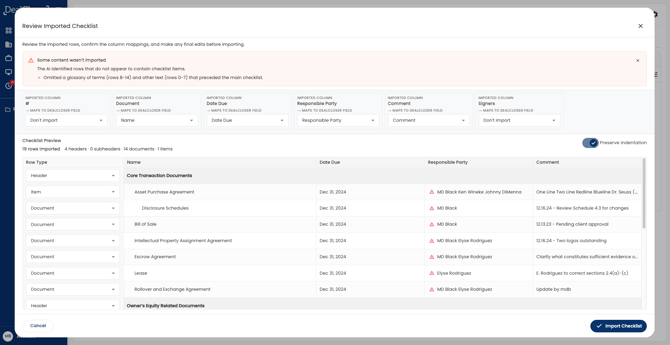
DealCloser will automatically detect and match your column headers.
-
Review your imported checklist where you can:
-
Choose “Don’t import” for any columns you wish to remove.
-
Change a column type
-
Create a new custom column field or
-
Adjust any row type between Document, Item, Header or Subheader.
-
Once ready, click “Import Checklist.”