![dealcloser-logo-onecolor-navy-2.png]](https://help.dealcloser.com/hs-fs/hubfs/dealcloser-logo-onecolor-navy-2.png?height=31&name=dealcloser-logo-onecolor-navy-2.png)
What is the MCP Connector?
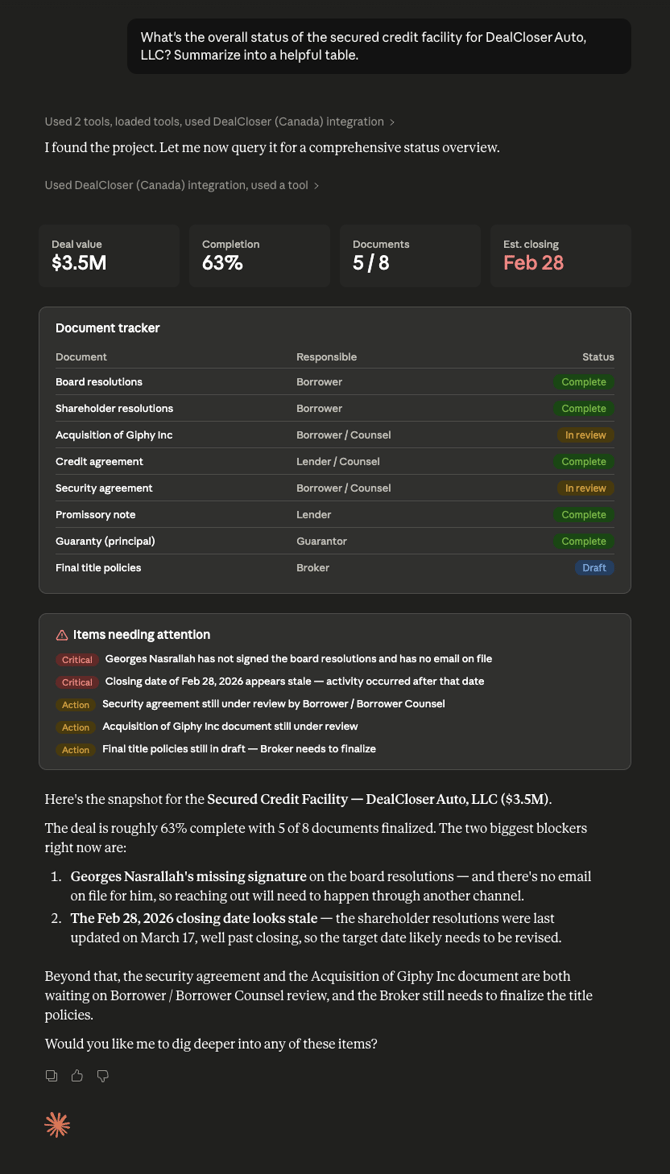
The DealCloser MCP (Model Context Protocol) Connector lets you query your DealCloser projects from inside a Claude conversation. You can ask natural-language questions about your deals — project status, closing checklists, signature progress, involved parties, and more — and get answers without leaving Claude.
What can I ask about?
Once connected, you can ask Claude questions like:
- "What's the overall status of Project Zeus?"
- "Which checklist items are still not started?"
- "Who hasn't signed yet on the share purchase agreements?"
- "Who is involved in this deal?"
- "When is the estimated closing date?"
- "Are there any unassigned items or blockers?"
Claude will identify the right project, query DealCloser, and return a structured summary — including progress breakdowns, signature statuses, and observations about risks or blockers.
Setting up the connector
To complete the steps below, you will need an active DealCloser account and access to Claude Desktop (Cowork mode) or another MCP-compatible Claude client.
Step 1: Contact your account manager to enable MCP
The MCP Connector is not enabled by default. Reach out to your DealCloser account manager (CSM) and request that the MCP server be turned on for your firm.
Step 2: Install the DealCloser connector in Claude
- Open Claude in Cowork mode (or your MCP-compatible client)
- Search for the DealCloser connector in the connector marketplace
- Click to install it
Step 3: Authenticate with your DealCloser account
- You will be prompted to log in to your DealCloser account
- Authorize Claude to access your project data
- This grants read-only access scoped to the projects your DealCloser user account can see
Step 4: Verify the connection
- Ask Claude: "List my DealCloser projects"
- You should see a list of projects you have access to in DealCloser
- If your projects appear, the connector is working correctly
Tips for asking effective questions
The connector works best with specific, direct questions tied to a single project. Here are some patterns that produce the best results:
- Be specific about the project — "What's the status of the Stark Industries acquisition?" works better than "Tell me about my deals"
- Narrow the scope — "Which documents are in review?" works better than "Show me everything"
- Name the project clearly — If you have multiple projects with similar names (e.g., several "Reorg" projects), use the full name or mention distinguishing details
You can ask about different projects in the same conversation. Claude will look up the correct project each time.
Troubleshooting
"I don't see my project in the list"
- Check your DealCloser permissions. The connector can only surface projects your account has access to. Log in to DealCloser directly and verify the project appears there.
- Try refreshing the connection. Disconnect and reconnect the DealCloser connector from your Claude settings.
- Recently added projects may take a moment to appear. Wait a minute and try again.
"The query timed out"
This typically happens when a project contains a very large volume of data (hundreds of documents or checklist items) and the question is very broad.
Fix: Ask a more targeted question. Instead of "List every document in this project," try "Which documents are in review?" or "What items in Section 3 are still not started?" This reduces the data the connector needs to process.
"The answer seems out of date"
The connector queries DealCloser in real time, so data should be current. If something looks stale:
- Verify the data in DealCloser itself to rule out a platform-side sync issue
- Ask the question again — transient issues can occasionally affect results
"Claude can't find my project"
- Double-check the project name for typos
- If you have many projects with similar names, provide more context: "the financing deal for DealCloser Auto, LLC" rather than just "financing deal"
Frequently Asked Questions
Is my data safe? The connector uses your existing DealCloser authentication and permissions. Claude does not store your project data between sessions. All queries are read-only — no data in DealCloser can be modified through this connector.
Can I ask about multiple projects at once? Claude handles one project query at a time internally, but you can ask comparative questions like "Compare the status of Project A and Project B" — Claude will query both and synthesize the results.
What if I need to make changes based on what Claude finds? Claude can identify exactly what needs attention — overdue items, missing signatures, unassigned tasks — but you'll need to make the changes directly in DealCloser. Claude can help you draft communications, build action plans, or create tracking documents to support those changes.
Getting Help
If you're experiencing issues not covered above:
- Re-authenticate — Disconnect and reconnect the DealCloser connector from your Claude settings
- Check DealCloser status — Ensure the platform is operational and you can access your projects through the main interface
- Contact support — For issues related to MCP enablement, project data, or permissions
- Connector issues — For problems specific to the Claude integration (connector won't install, authentication loops, etc.), consult your Claude client's connector documentation